
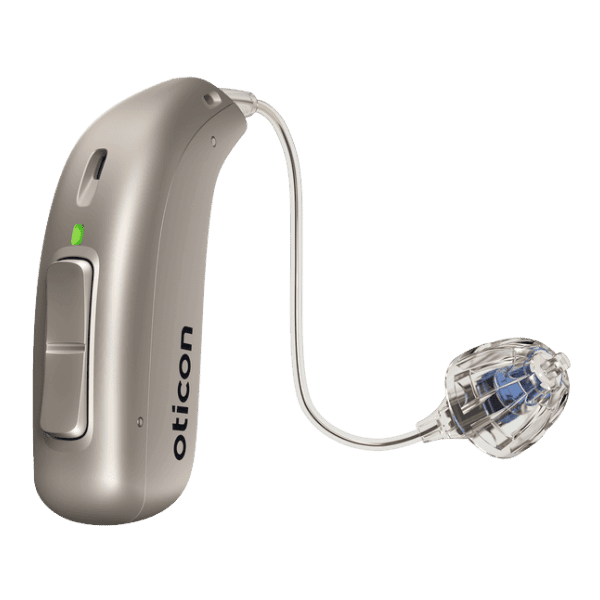
Oticon Real
What do you need help with?

Bluetooth Support
Need Bluetooth support for your Oticon hearing aids?
Hearing Aid Apps
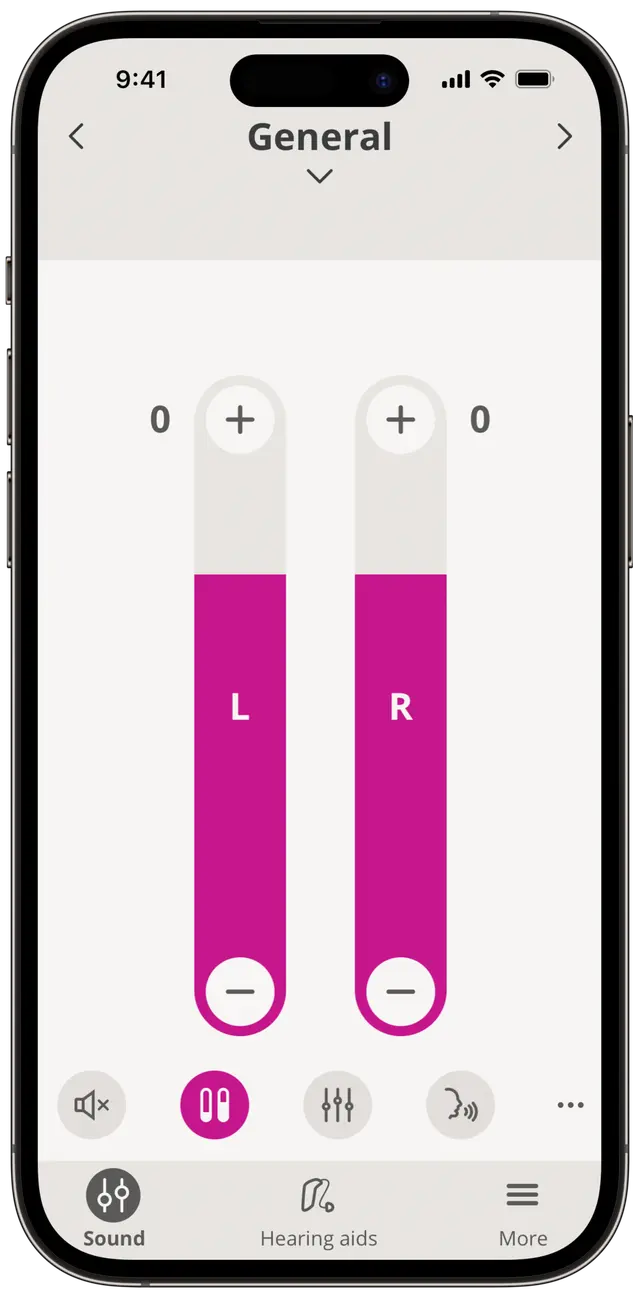
What you can do with the Oticon Companion App
Device Control & Customization
- Discreetly control your hearing aids from your phone or Apple Watch
- Customize settings to personalize your hearing experience
- Adjust programs and features as needed
Hearing Aid Management
- Care for your hearing aids through the app
- Monitor and manage device settings
- Access convenient control options
Hands-Free Calling
- Accept calls with a simple double-tap on your hearing aids
- Enjoy seamless phone connectivity
Convenience & Accessibility
- Get the most from your hearing aids with powerful app features
- Access all controls from your smartphone or Apple Watch for maximum flexibility
Video Tutorials
How to pair Oticon Bluetooth hearing aids with an iPhone
How to unpair Oticon Bluetooth hearing aids and an iPhone
How to pair Oticon Bluetooth hearing aids with an Android phone
How to unpair Oticon Bluetooth hearing aids and an Android phone
How to pair Remote Control with Oticon Bluetooth hearing aids
How to pair ConnectClip with Oticon Bluetooth hearing aids
How to pair Oticon ConnectClip with a mobile phone
How to use Oticon ConnectClip with a computer
How to use Find my hearing aids in Oticon Companion app
How to find your battery levels and set up battery status notifications in Oticon Companion app
How to Charge Oticon miniRITE
Hearing Aid FAQs
Turn off both devices, then turn your hearing aids back on. Press and hold the ConnectClip's multi-button for 3 seconds until you see a blinking yellow light. Keep devices within 8 inches until the light turns solid yellow—pairing is complete.
Using ConnectClip:
- Short press +/- buttons for volume
- Long press + to change programs, - to mute
- Press and hold multi-button for 3 seconds (until magenta light) to activate remote microphone mode. Clip to your conversation partner for clearer speech transmission.
First, pair your hearing aids with your phone, tablet, or computer. Once paired, calls automatically route to your hearing aids.
Answering calls: Briefly press the button or double-tap one of your hearing aids, or accept the call normally on your device. (On computers, accept calls via the computer—hearing aid buttons aren't supported.)
Making calls: Simply dial as normal on your device—the call automatically routes to your hearing aids.
Note: On iPhone/iPad, enable hands-free calls by triple-clicking the power or home button, scrolling to "Mic Input," and turning it on. Other devices enable this automatically after pairing.
Open the Oticon Companion app and tap Sound > three dots (...) > Auracast broadcast button.
Option 1 - Scan QR Code:
Tap Scan QR Code at the top of the screen, point your camera at the Auracast QR code, select the broadcast, enter password if needed, then tap Join. Adjust volume with the slider.
Option 2 - Select Manually:
Choose a broadcast from the Nearby broadcasts list, tap Join, enter password if needed, and adjust volume with the slider.
Note: Works with Android 10+ and iOS 15.2+.
Oticon Remote Care allows your hearing care professional to adjust and fine-tune your hearing aids remotely without requiring an in-person visit. You can access Remote Care through the Oticon Companion app on your smartphone. Simply request a virtual appointment with your provider to receive hearing aid adjustments and professional support from the comfort of your home.
To remove: Hold the receiver or end of the thin tube securely and pull the earpiece off.
To replace: Place the receiver or end of the thin tube exactly in the middle of the new earpiece, then push firmly to fasten it securely.
Your Oticon hearing aids use different sound signals to alert you:
3 alternate tones - Low battery: Your batteries have approximately two hours of power remaining (or one hour if you're streaming via Bluetooth). This alert repeats every 30 minutes.
4 beeps (descending tone) - Powering down: Your hearing aids are turning off, either because you've turned them off or the batteries are depleted.
8 beeps - Service needed: Your hearing aid requires a microphone service check. This alert repeats four times. Contact your hearing care professional for assistance.
Jingle - Startup: Your hearing aids play a brief jingle when powered on to confirm they're active and ready to use.